
CatalogPort Support
CatalogPort syncs photos from an Adobe Lightroom Classic catalog to a folder or to Apple Photos. CatalogPort is in development; this page will grow as it approaches release.
Watch the 3-minute walkthrough
Requirements
- macOS 14 or later
- Lightroom Classic 11.4 or later
- The free CatalogPort plug-in for Lightroom Classic, installed with the Creative Cloud desktop app
Install the Lightroom plug-in
Quit Lightroom Classic. Creative Cloud doesn't install the plug-in while Lightroom Classic is open; it shows "Close applications".
Open CatalogPort in Adobe Exchange, click Free (or Get), and let it open the Creative Cloud desktop app.
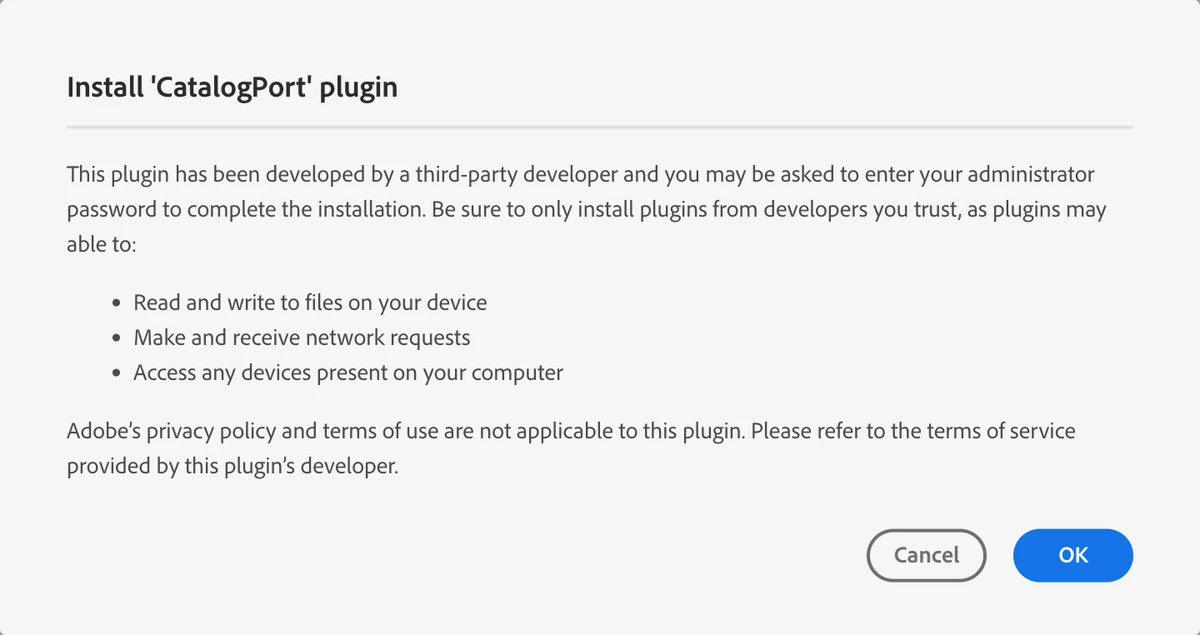
In Creative Cloud, confirm "Install 'CatalogPort' plugin" with OK. Adobe shows this notice for every third-party plug-in.
If macOS asks for administrator access for "Creative Cloud Installer", enter your Mac password. This is a macOS prompt; CatalogPort never sees the password.
Wait until Creative Cloud shows "Installed" under Stock & Marketplace › Plugins › Manage plugins.
Open Lightroom Classic. The plug-in starts on its own.
In CatalogPort, click Connect Lightroom… and choose Lightroom's
Modulesfolder (~/Library/Application Support/Adobe/Lightroom/Modules).
You don't need to copy plug-in files by hand.
To update or remove the plug-in, use Creative Cloud desktop › Stock & Marketplace › Plugins › Manage plugins.
Common questions
Why does CatalogPort ask for Lightroom's Modules folder? CatalogPort and its Lightroom plug-in exchange sync jobs through a small file in Lightroom's Modules folder. macOS asks you to choose that folder once so CatalogPort may write there. CatalogPort never downloads plug-in code.
Why does CatalogPort ask for access to Photos? Only when you choose Apple Photos as a destination. CatalogPort uses the access to add, update, and remove the photos it syncs. You can change this in System Settings › Privacy & Security › Photos.
The Sync button is greyed out. Sync works on the photos you select. Select one or more photos, or use Select All.
Sync says Lightroom isn't reachable. Make sure Lightroom Classic is open and CatalogPort shows "Installed and running" in File › Plug-in Manager. If Lightroom opened in the Develop module, switch to the Library module (press G), then click Retry in CatalogPort.
How do I update or remove the plug-in? The Creative Cloud desktop app installs plug-in updates. To remove the plug-in, uninstall it in the Creative Cloud desktop app, then restart Lightroom Classic. Removing the plug-in doesn't change your catalog or your photos.
Contact
Write to support@i4xstudio.com. Include your macOS version, the CatalogPort version, and the steps that led to the problem. Please don't attach personal photos.
Privacy: see the CatalogPort privacy policy.